

Frequently Asked Questions
What are the known issues?
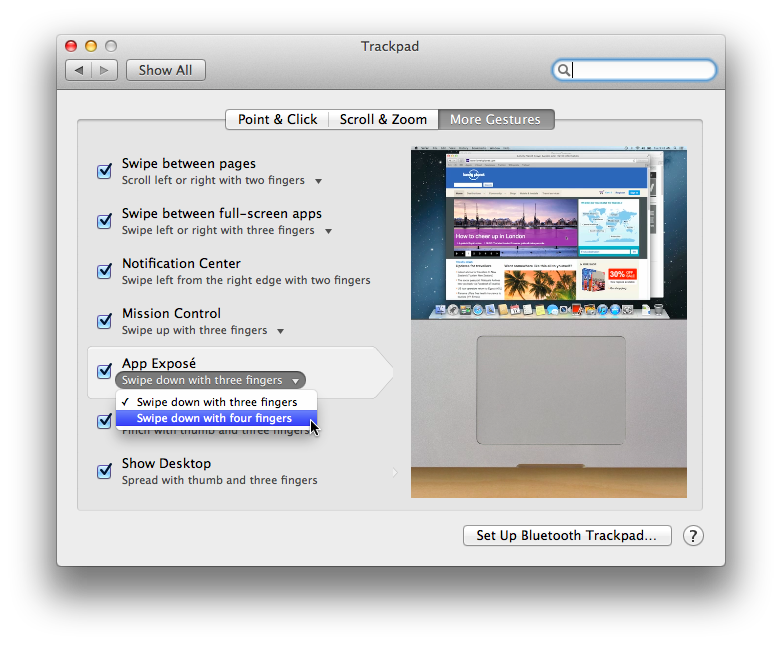
1. Some gesture interferes with App Exposé
Workaround: You must either disable App Exposé or change it from "Swipe down with three fingers" to "Swipe down with four fingers". (Open System Prefereces -> Trackpad. Go to More Gestures tab. Change the option under "App Exposé" from "Swipe down with three fingers" to "Swipe down with four fingers").
2. The OS's built-in pinch-to-zoom, rotate, swipe between pages stop working
This behavior seems to be caused by One-Fix Two-Slide-Down/Up, One-Fix-Press Two-Slide-Down/Up gestures. Currently, we're still investigating and part of the problem could be due to the new OS. Users have suggested following hacks to get those gestures back: 1. Toggling random gestures in the Trackpad Settings. 2. Use Character Gestures. 3. Do the "Notification Center" gesture (Swipe left from the right edge with two fingers) a few times. 4. Swipe Leftward from the right edge then rightward from the left edge.
I need to allow jitouch to control the computer, but jitouch isn't shown under the Security and Privacy list.
1. Open "System Preferences"
2. Click "Security & Privacy"
3. Go to the "Privacy" tab and select "Accessibility"
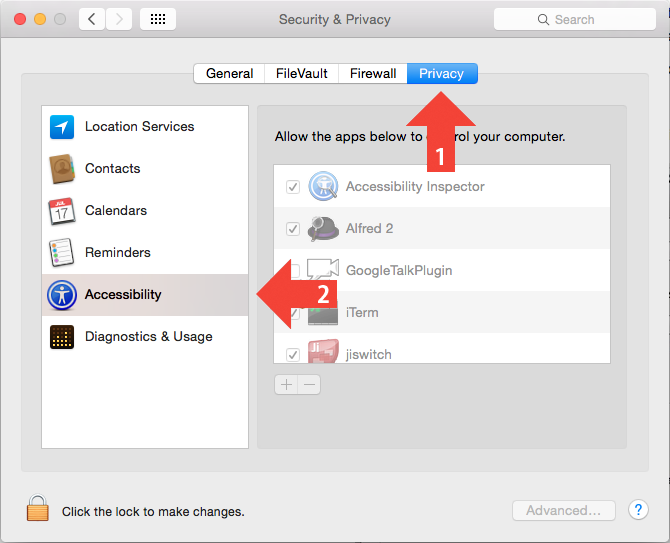
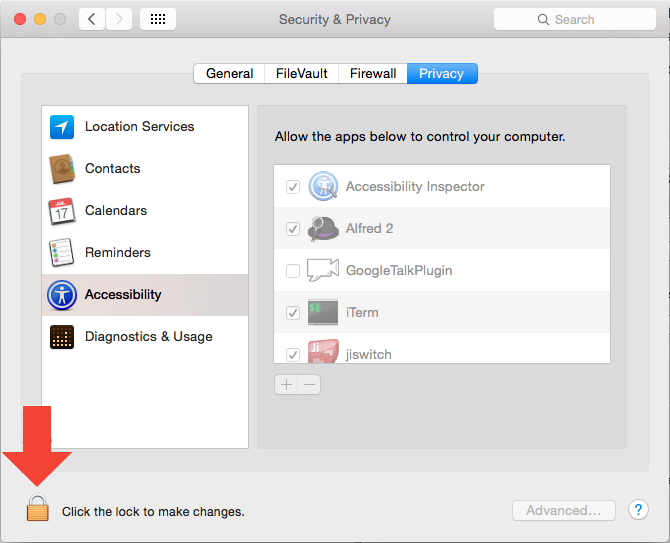
4. Click the lock icon if it is locked. Then enter your username and password.
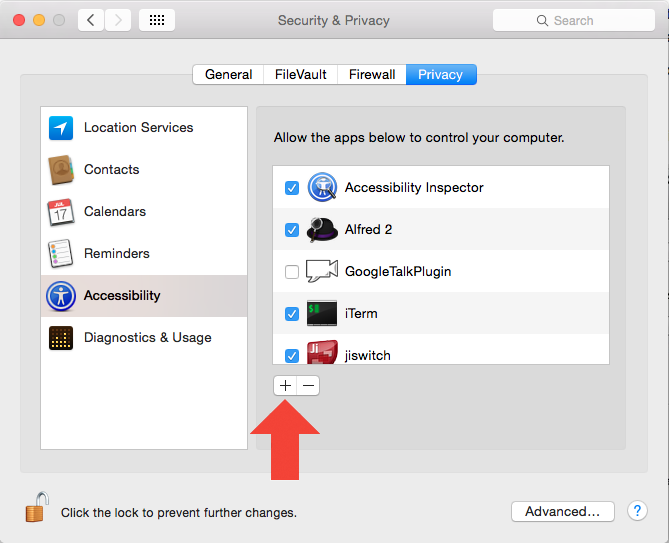
5. Click on the + icon.
6. Press Command + Shift + G to bring up "Go to the folder" dialog.
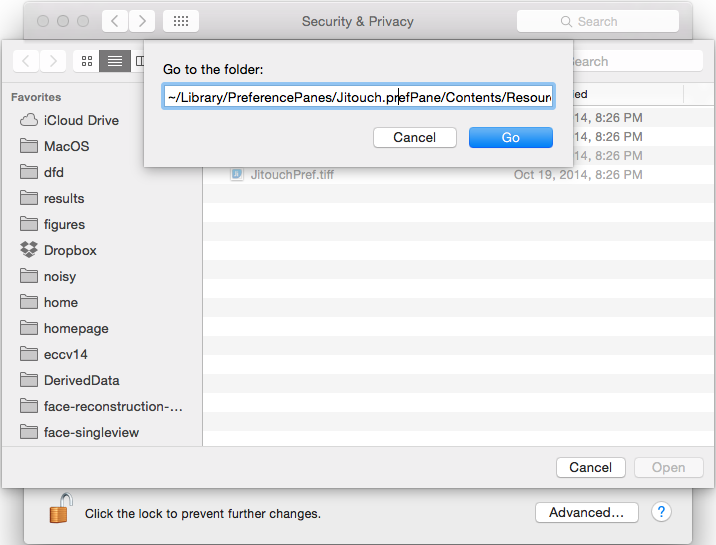
7. If you install jitouch for a single user, type in "~/Library/PreferencePanes/Jitouch.prefPane/Contents/Resources".
If you install jitouch for all users of your computer, type in "/Library/PreferencePanes/Jitouch.prefPane/Contents/Resources"
8. Select jitouch application.
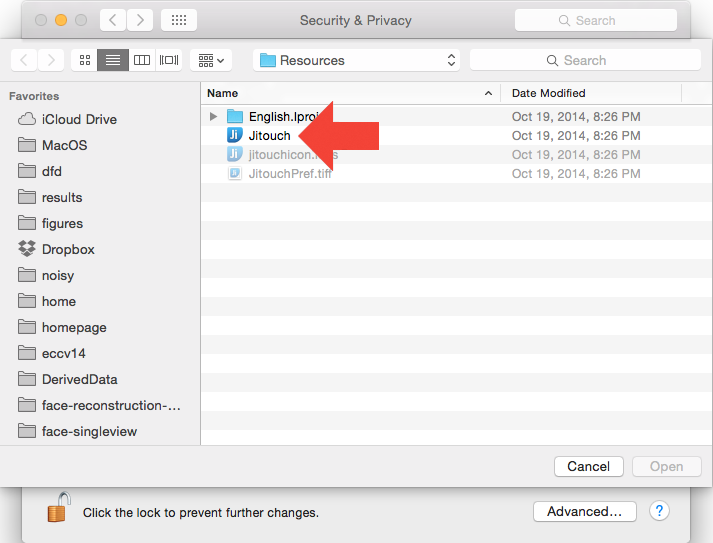
**9. If this still doesn't add jitouch to the list, copying Jitouch out from .../Jitouch.prefPane/Contents/Resources/ to ~/Applications/ folder, then choose jitouch from this new location in ~/Applications/.
I can't install jitouch
If you encounter an error that says "Jitouch.prefpane can't be opened because it is from an unidentified developer", do the following:
1. Open the System Preferences -> Security & Privacy.
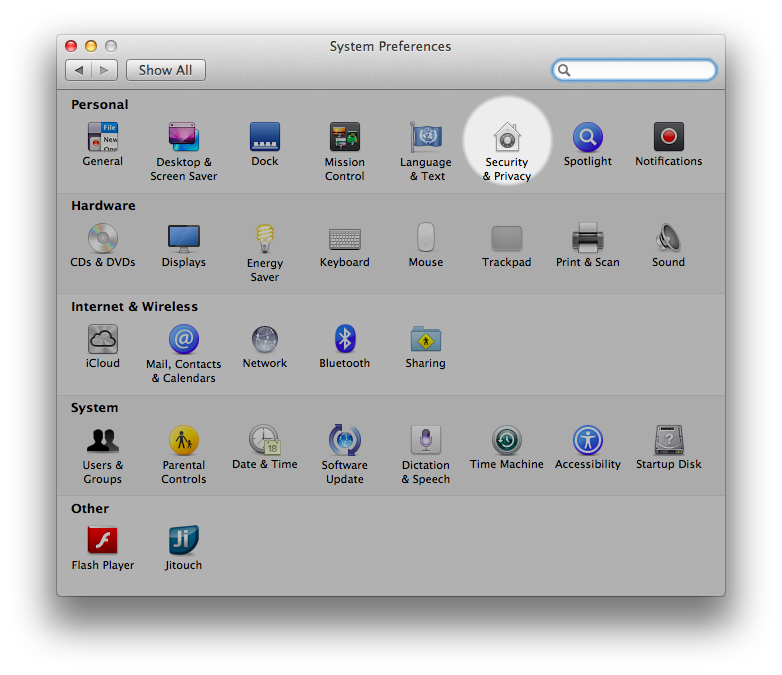
2. Click the lock icon at the bottom left corner.
3. Enter your password and click Unlock (if it asks for one.)
4. In General tab, under "Allow applications downloaded from", choose Anywhere.
5. Click "Allow From Anywhere."
6. Try installing jitouch again.
Why are Character Gestures not working?
This feature is disabled by default. To use this feature
1. Open the System Preferences -> Jitouch
2. Under the Characters tab, check "Trackpad" or "Mouse."
For Trackpad, simply draw with your Index and Ring fingers (or separated Index-Middle) on the Trackpad.
For Magic Mouse, drag your mouse while you click on the right half of the mouse with Index and Middle fingers.
Some gestures don't work
For OS X El Capitan, Yosemite, and Mavericks:
1. Open "System Preferences"
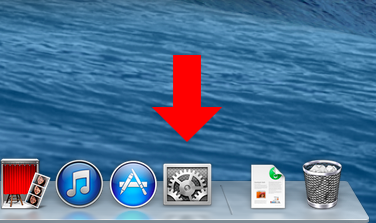
2. Click "Security & Privacy"
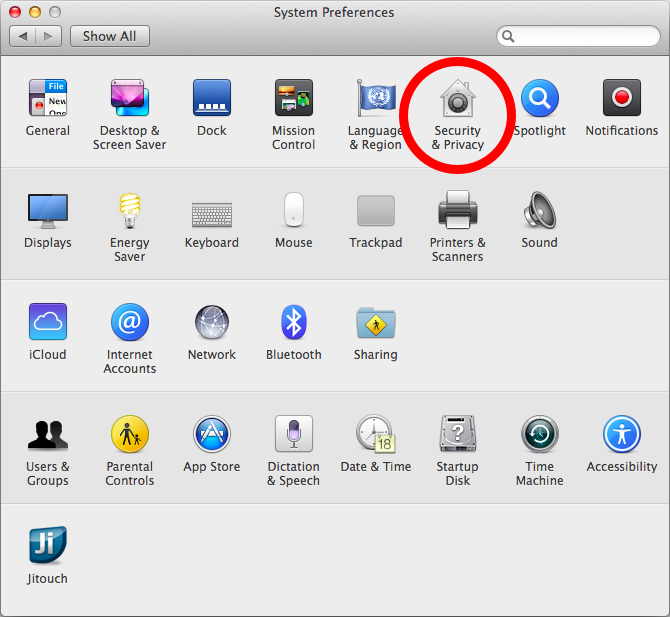
3. Go to the "Privacy" tab and select "Accessibility"
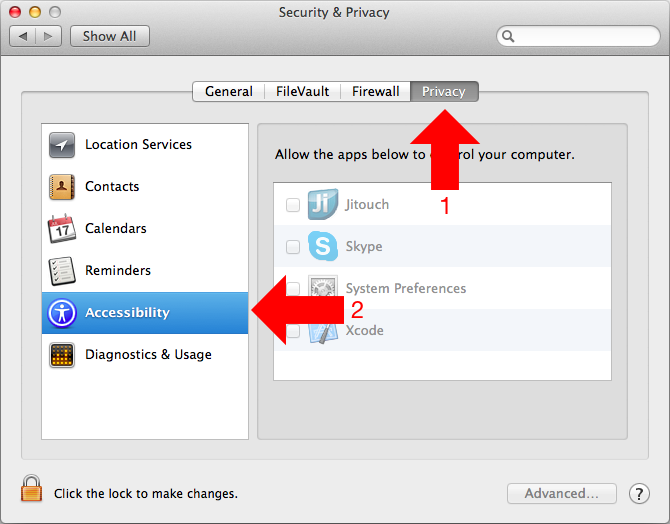
4. Click the lock icon if it is locked. Then enter your username and password.
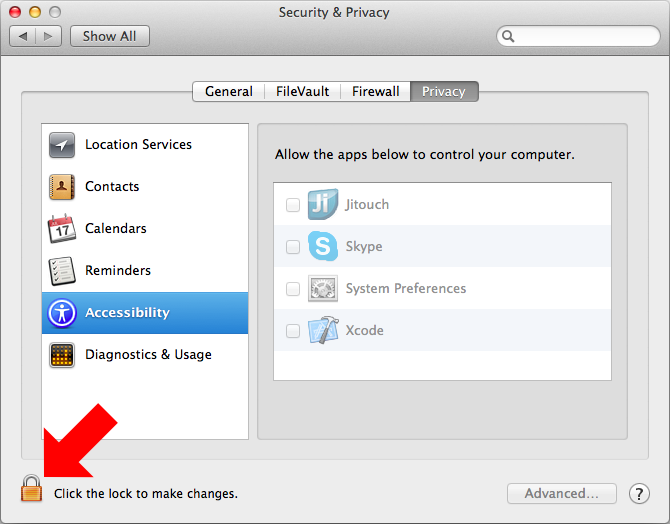
5. Check "Jitouch" and "System Preferences"
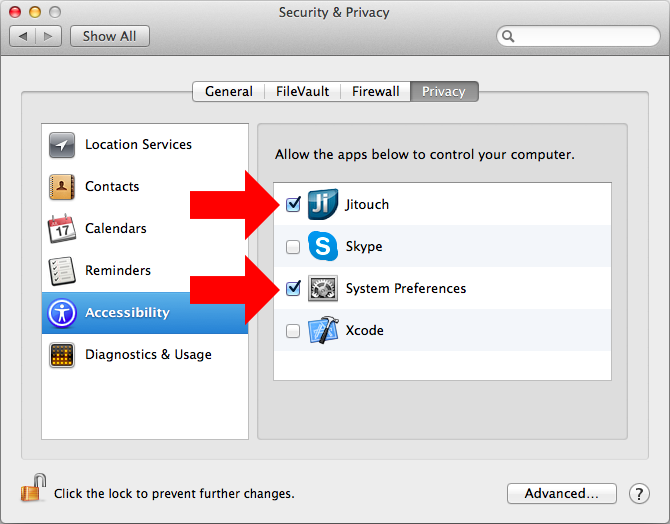
6. Close the window
For OS X Mountain Lion or older:
Please make sure that the Accessibility API is enabled by
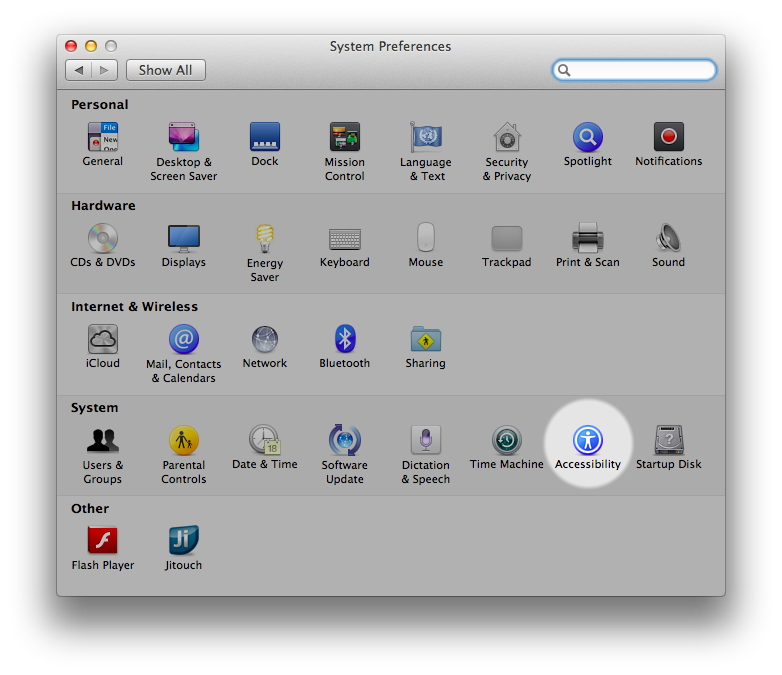
1. Open the System Preferences -> Accessibility (or System Preferences -> Universal Access on OS X Snow Leopard)
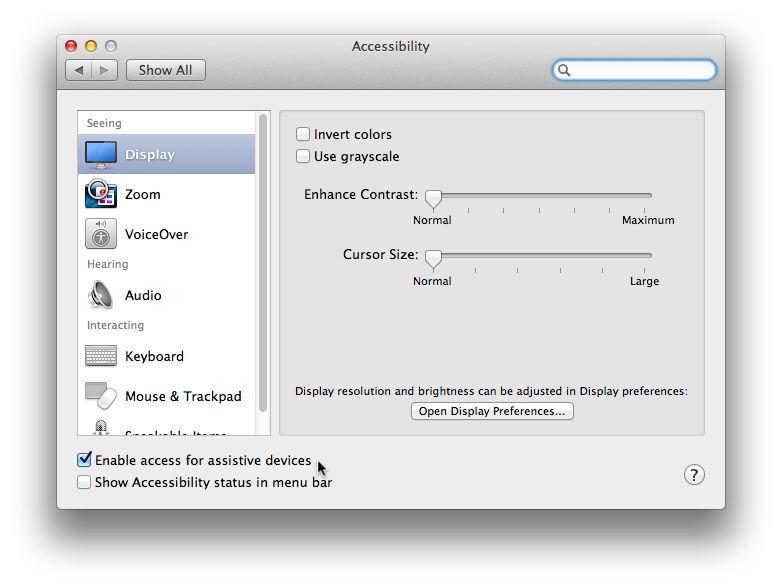
2. Check "Enable access for assistive devices" at the bottom
3. Restart jitouch
How can I overide the default gestures?
1. Open the System Preferences -> Jitouch
2. Go to "Trackpad" or "Magic Mouse" tabs
3. Double click at the gesture you want to set, then set it, and click "Save"
Index-To-Pinky gesture doesn't work very well
Be sure to put all your 4 fingers on the Trackpad before releasing any one of them and you can perform this gesture very slowly.
Drawing with Index and Ring is awkward. Are there other options?
You may find the combination of Index and Ring a little bit awkward at first, but please spend a few hours to practice. Most people get used to it pretty quickly. However, jitouch also offers an option to draw with one finger which can be enabled by
1. Open the System Preferences -> Jitouch
2. Under the Characters tab, click the "Settings..." button
3. Check "Enable One-Finger Drawing" and click "Done"
How to uninstall?
1. Click at jitouch's icon on the menu bar and quit
2. Open the System Preferences, right click (or ctrl+click) at jitouch's icon and click Remove
Support
If you have a problem and couldn't find the answer from the FAQs above or would like to suggest new features, please let us know by using the form below. We'd be happy to help you as much as we can.
You can also contact us via e-mail at support@jitouch.com.
Developers
Supasorn Suwajanakorn
Sukolsak Sakshuwong
We want to thank you everyone for your interest in our application. We always have a determination to give part of our profit to poor children in Thailand, our home country. For them, even $0.5 can buy a meal and bring smile. The following is a list of websites, if you're interested:
- Thai Children's Trust
- Donation in Thailand Charities Can Help Children in Need
- Donate in your birthday in Thailand
Special Thanks
Tony Arnold from The CocoaBots
MAAttachedWindow by Matt Gemmell
Erling Alf Ellingsen from steike

